AI Headshot Common Problems: A Pro's Guide to Better Pics
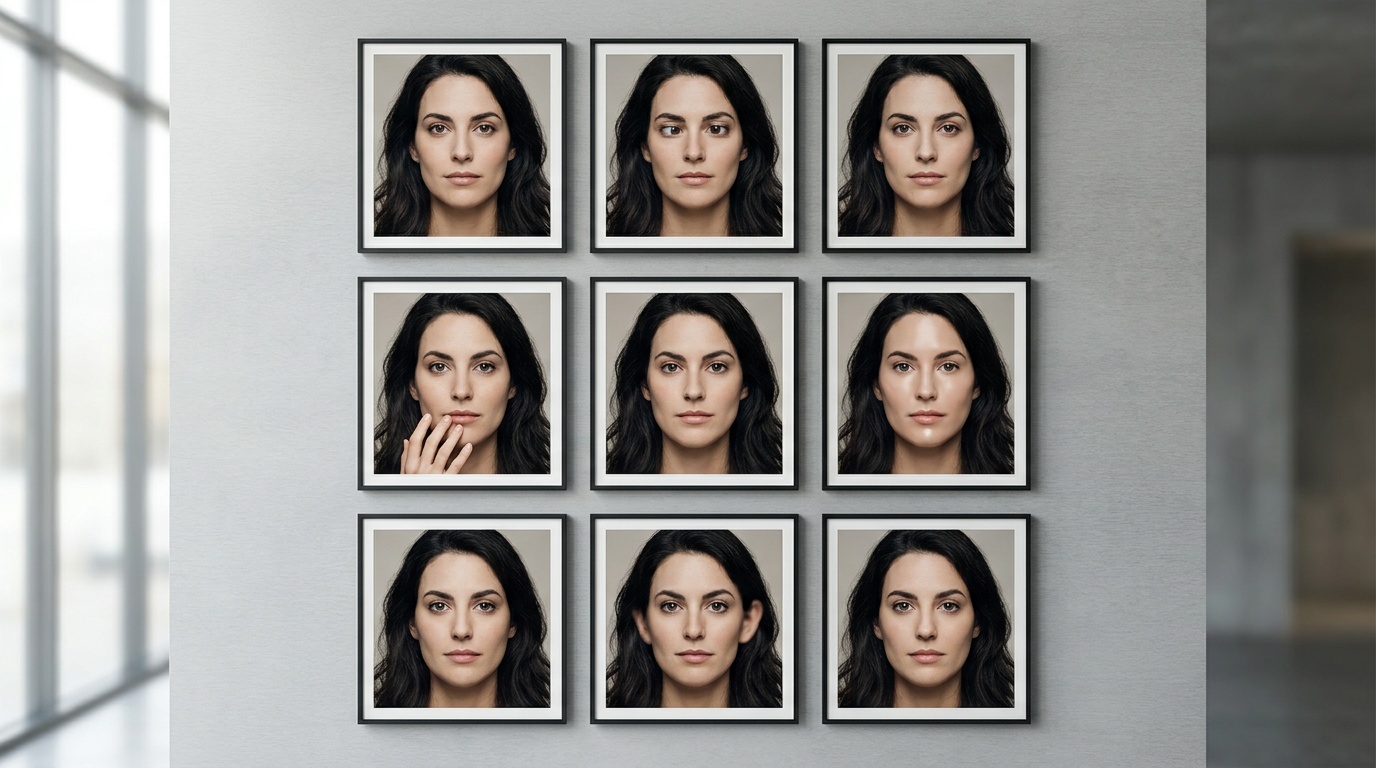
AI headshots promise a professional look with just a few clicks, but the results can sometimes be more bizarre than brilliant. You upload your best selfie, full of hope, only to get back a portrait with mismatched eyes, a six-fingered hand, or a jawline that’s mysteriously migrated. These ai headshot common problems are frustrating, but understanding why they happen is the first step to avoiding them and getting the polished image you're after.
Why AI Gets It Wrong: A Peek Inside the Digital Brain
Before we dive into fixing the issues, it helps to know what’s happening behind the curtain. Most AI image generators use a technology called a diffusion model. Think of it as an artist who has studied millions upon millions of photos from the internet. When you ask it to create your headshot, it doesn't "see" you in the human sense. It doesn't understand that an eye needs a pupil or a hand has five fingers.
Instead, it recognizes patterns of pixels. It knows that certain arrangements of light and dark pixels typically form something that humans label an "eye." It then tries to recreate that pattern based on your input photo and the style you've requested. The process starts with digital noise (like TV static) and gradually refines it into an image that matches its training. When the patterns it has learned are ambiguous or conflict with each other, you get artifacts.
This is why hands are so notoriously difficult for AI. In its training data, hands appear in countless positions: holding objects, clenched in fists, partially obscured. The AI struggles to find a single, coherent pattern, so it often mashes several together, resulting in anatomical absurdities. It's not stupid; it's just thinking in a completely different, non-human way.
The Most Common AI Headshot Problems (And Why They Happen)
As a photographer, I spend my time obsessing over the details that make a portrait feel authentic. When an AI misses these details, the result can fall deep into the "uncanny valley." Here are the most frequent culprits I see and the technical reasons behind them.
Wonky Eyes and Uncanny Stares
This is perhaps the most jarring artifact. You might see one eye that's slightly larger than the other, pupils of different sizes, or catchlights (the reflection of a light source) that don't match. Sometimes, the eyes look flat, dead, or vacant.
- The Cause: The human brain is hardwired to seek out and analyze eyes for social cues. We notice even the slightest asymmetry instantly. AI models struggle to maintain perfect bilateral symmetry. They might pull the texture for one eye from one training image and the shape for the other from a completely different one. The lack of a single, logical light source in its "mind" also leads to bizarre or missing catchlights, which are crucial for making eyes look alive.
The Six-Fingered Hand and Other Limb Nightmares
We've all seen them: the hand that gracefully melts into a forearm, the wrist bent at an impossible angle, or the infamous six- or seven-fingered hand. These are classic AI generator mistakes.
- The Cause: As mentioned, hands are anatomically complex and appear in infinite variations. The AI doesn't have a skeletal model to work from; it only has pixel patterns. When you ask for a headshot where your hand is near your face, the AI tries to blend the pattern for "face" and the pattern for "hand," often with messy results. The more complex the hand pose, the higher the likelihood of a glitch.
Bizarre Jewelry and Accessory Glitches
Have you ever seen an earring that seems fused to the earlobe, a necklace chain that becomes part of the skin, or glasses with warped, asymmetrical frames? These are subtle but distracting problems.
- The Cause: Accessories are another variable the AI struggles with. A delicate chain or a hoop earring can be too fine for the model to render accurately, especially if the input photo isn't crystal clear. It might interpret the accessory as part of the skin or clothing and blend it in. Glasses are a double challenge, as the AI has to render the frames, the lenses, the reflection on the lenses, and the eyes behind them all at once.
Unnatural Skin Textures and "Plastic" Faces
Sometimes the AI goes too far in the other direction. Instead of artifacts, you get an image that’s too perfect. The skin is smoothed into a featureless, plastic-like surface, erasing all pores, fine lines, and character. It no longer looks like a photograph of a real person.
- The Cause: Many AI models are trained on datasets that include heavily retouched fashion and beauty photos. The AI learns that "good" means "flawless." In its attempt to create a polished headshot, it can aggressively apply digital smoothing, stripping away the micro-textures that make skin look real. It removes the very imperfections that signal authenticity.
Garbage In, Garbage Out: Your Input Photos Are Everything
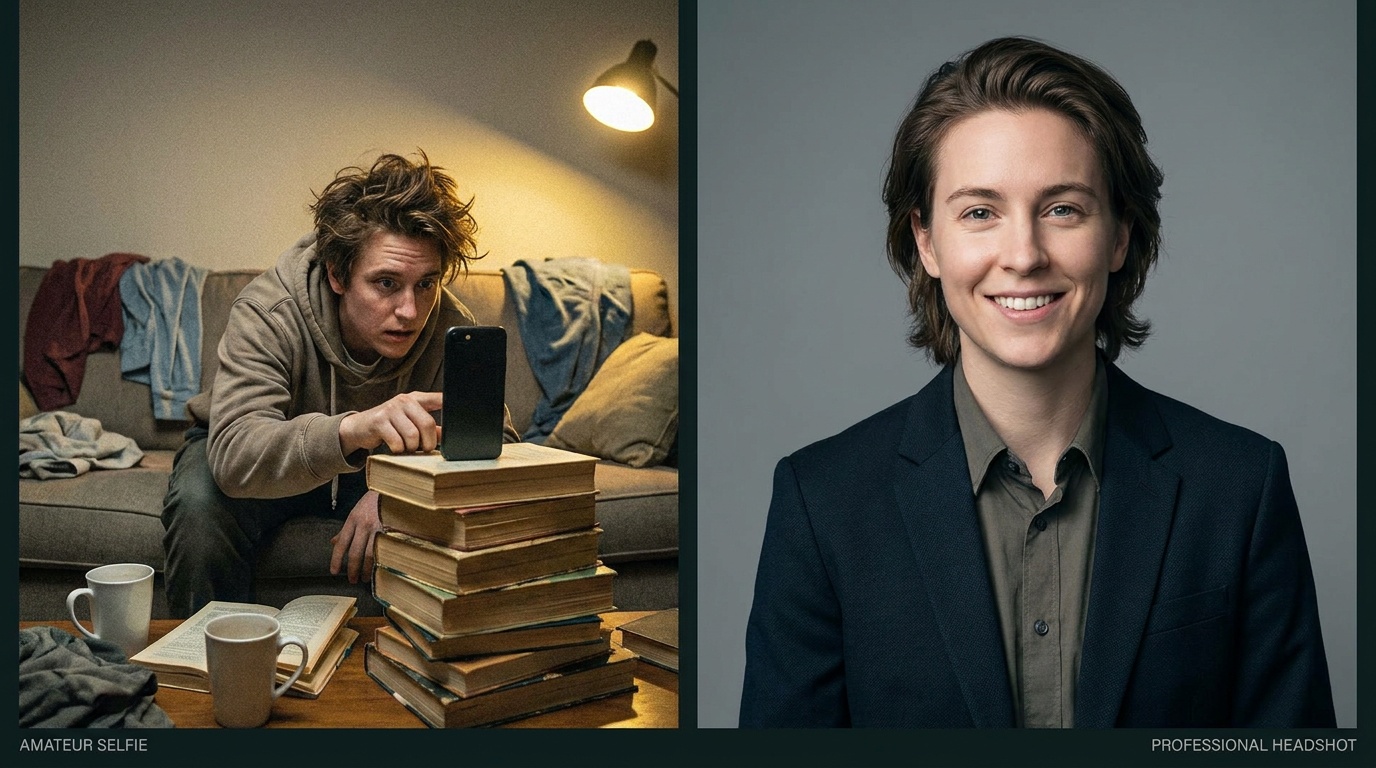
This is the single most important lesson for getting better AI headshots. The quality of your output is directly and unbreakably linked to the quality of your input. The AI needs clear, unambiguous data to work with. If you feed it blurry, poorly lit photos, you are practically guaranteeing a result full of artifacts.
As a photographer, I can't stress this enough. Before I even pick up my camera for a portrait session, my first priority is controlling the light and ensuring my subject is in focus. You should adopt the same mindset when choosing your selfies for an AI generator.
The "Good Selfie" Checklist
Before you upload a batch of photos, run each one through this mental checklist. Aim for 10-20 high-quality images that show your face from slightly different angles.
- Lighting is King:
- Do: Use soft, even, frontal light. The best and cheapest source is a large window on an overcast day. Face the window directly so your entire face is evenly illuminated.
- Don't: Use harsh overhead lighting (which creates deep eye sockets), strong side lighting (which casts half your face in shadow), or backlighting (which turns you into a silhouette). Avoid dappled sunlight or mixed-color lighting.
- Clarity and Resolution:
- Do: Use photos taken with a modern smartphone's rear camera (it's usually better than the selfie cam). Make sure your face is perfectly in focus. You should be able to see individual eyelashes.
- Don't: Upload blurry, out-of-focus, or pixelated images. Avoid screenshots or photos downloaded from social media, as they are often heavily compressed.
- Expression and Pose:
- Do: Look directly at the camera. A neutral expression or a small, genuine smile works best. Provide a few options: smiling with teeth, smiling without, and neutral.
- Don't: Use extreme angles (high or low). Avoid covering your face with your hands, hair, or a hat. No sunglasses. No duck faces or exaggerated expressions.
- Background and Clothing:
- Do: Stand in front of a simple, plain background. A solid-colored wall is perfect.
- Don't: Use a busy or cluttered background. The AI can get confused and try to blend parts of the background (like a plant or a picture frame) into your hair or clothing.
- Do: Wear simple, solid-colored tops. A crew neck or V-neck is ideal.
- Don't: Wear complex patterns, large logos, turtlenecks, or hoodies. These can interfere with the AI's ability to render a clean neckline and shoulders.
Upload a photo, pick a look and get your portrait in a minute. Your face stays yours.
Try itFine-Tuning Your Prompts and Settings
Some advanced AI generators give you more control than just uploading photos. If you have access to settings like text prompts or fidelity sliders, you can use them to steer the AI away from common pitfalls.
The Power of Negative Prompts
A negative prompt is a command that tells the AI what not to include. It's like telling a painter, "Whatever you do, don't use too much red." This is an incredibly powerful tool for reducing artifacts.
If you're getting weird hands, you can add a negative prompt like: deformed hands, extra fingers, fused fingers, mutated hands.
For eye and face issues, try: asymmetrical eyes, blurry, disfigured, bad anatomy, deformed, ugly.
By explicitly telling the model to avoid these features, you significantly increase your chances of getting a clean result.
Adjusting "Likeness" or "Fidelity" Sliders
Some platforms have a setting that controls how closely the AI should stick to your original photo. A high-fidelity setting prioritizes making the output look like you, while a low-fidelity setting gives the AI more creative freedom. This is a trade-off.
- High Fidelity: More likely to preserve your unique features and less likely to produce strange artifacts. However, the result might be less stylized or transformative.
- Low Fidelity: Allows for more dramatic changes in style, lighting, and background. However, this freedom also increases the risk of the AI making bigger mistakes with your anatomy.
For a professional headshot, you almost always want to lean towards higher fidelity.
When to Edit and When to Reroll
You've generated a batch of images. Some are great, some are okay, and some are just plain weird. What's the next step? You need to decide whether an image is salvageable with a quick edit or if you need to go back to the drawing board.
- Reroll If You See These Red Flags:
- Major Anatomical Errors: Any problem with eyes, hands, or facial structure. These are nearly impossible to fix without advanced Photoshop skills.
- The Face Isn't Yours: If the AI has drifted too far and the person in the headshot doesn't look like you, the image is a failure. Don't try to convince yourself it's close enough.
- Fundamental Lighting Flaws: If the lighting is nonsensical (e.g., a harsh shadow under the nose when the style is supposed to be soft and flat), the image will never look right.
- Edit If You See These Minor Issues:
- A Small Blemish or Stray Hair: These can be easily removed with a healing brush tool in almost any free photo editor (like Snapseed or the editor built into your phone).
- Minor Color/Contrast Issues: If the image is a little too dark, too bright, or the colors feel slightly off, these are easy adjustments.
- A Slightly Odd Background Element: Sometimes a small part of the AI-generated background looks strange. You can often crop the image or use a blur tool to hide it.
Services that are highly specialized in portraiture can save you a lot of this trouble. For instance, at Portretto, our AI models are specifically trained to generate professional headshots while prioritizing facial fidelity. This focus helps minimize the most common AI headshot problems from the start, so you get a studio-quality portrait that actually looks like you, not a distorted digital guess.
A Photographer's Perspective: The Road Ahead
As someone who has spent years learning the nuances of light, posing, and human expression, it's fascinating to watch this technology evolve. The artifacts and glitches we see today are symptoms of a technology in its adolescence. It's powerful and capable, but it still lacks a deep, contextual understanding of the world.
But don't let the imperfections discourage you. By providing the AI with the best possible input and understanding its limitations, you can guide it toward creating truly stunning and useful headshots. Just a few years ago, this level of image creation was pure science fiction. Today, it's an accessible tool that, when used correctly, can give you a professional image for your LinkedIn, website, or resume in a matter of minutes. The key is to be a discerning director, not just a passive user.
FAQ
Why do my AI headshots have weird eyes?
AI models struggle with perfect symmetry and the complex details of eyes, like catchlights. They often average features from thousands of different faces in their training data, which can result in mismatched pupils, strange reflections, or an unnatural stare. Providing a clear, well-lit photo where you're looking directly at the camera can help.
How do I stop AI from messing up hands?
Deformed hands are one of the most common AI generator problems because hands are incredibly complex. The best way to avoid this is to choose input photos where your hands are not visible or are in a very simple, clear position. Poses with hands clasped, in pockets, or behind your back often yield better results than complex hand gestures.
Can I fix a bad AI headshot?
It depends on the issue. Minor problems like a small blemish or color imbalance can be fixed with basic photo editing software. However, major anatomical errors like distorted eyes, extra fingers, or a face that doesn't look like you are nearly impossible to fix convincingly. In these cases, it's better to generate a new image using better input photos.
What is the best photo to use for an AI headshot generator?
The ideal input photo is a high-resolution selfie taken in soft, even lighting, like facing a window on an overcast day. Look directly at the camera with a neutral expression or a gentle smile, use a plain background, and wear simple, solid-colored clothing. Avoid hats, sunglasses, and busy patterns.
Why does my AI headshot look like a cartoon or too 'plastic'?
This 'plastic' look often happens when the AI over-processes the image, smoothing out skin texture to an unnatural degree. Some generators are tuned for a more artistic or 'beautified' style. Using a high-fidelity setting (if available) or a service focused on realism can help retain natural features like pores and fine lines.